
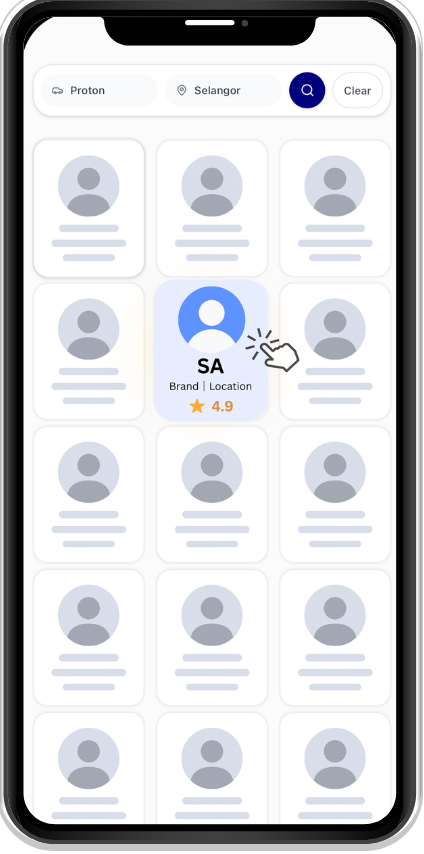
Step 1
Choose your preferred SA
View Guide
Choose an SA, select what you are interested in, and send a WhatsApp enquiry.
Step 1
Choose your preferred SA
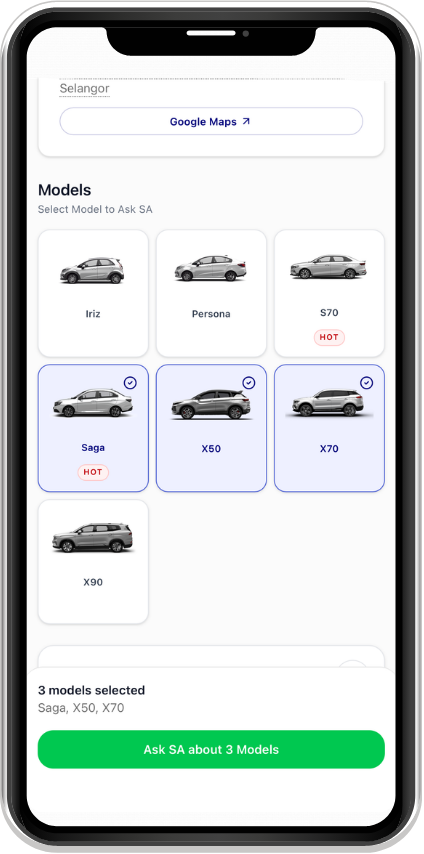
Step 2
Select what you are interested in, then send a WhatsApp enquiry
Step 3
Continue your enquiry on WhatsApp
Step 1
Choose your preferred SA
Step 2
Select what you are interested in, then send a WhatsApp enquiry
Step 3
Continue your enquiry on WhatsApp
Authorized Dealer Sales Advisors use model selection. Multi-Brand Advisors use brand selection.
Open the Review Link, log in with the matching phone number, and share your experience.
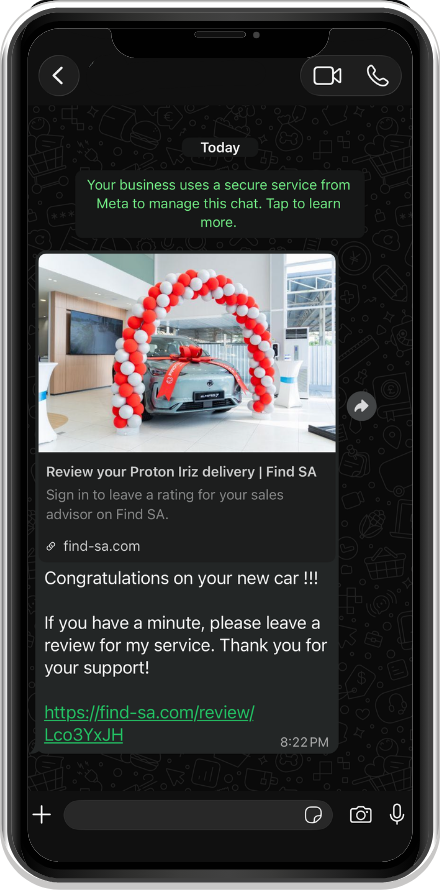
Step 1
Open the Review Link from WhatsApp
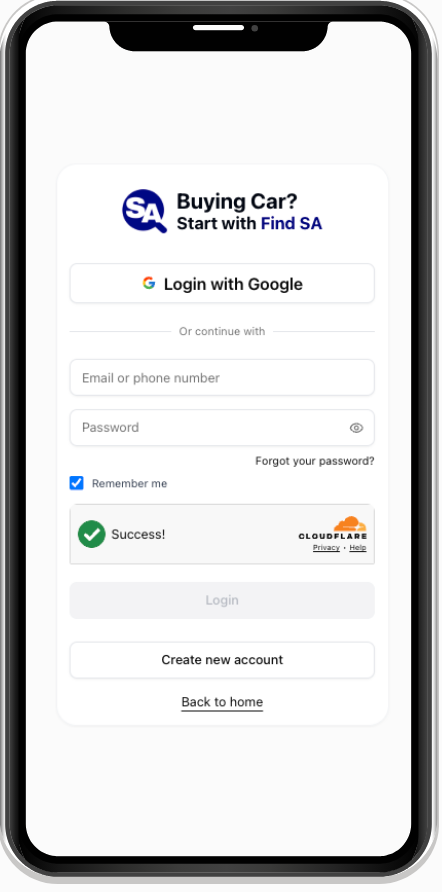
Step 2
Log in or create an account
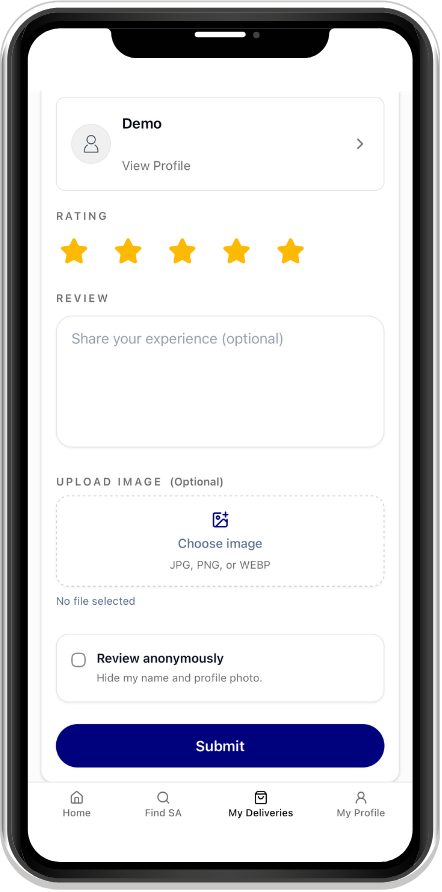
Step 3
Select a rating, add an optional review or photo, and tap Submit
Step 1
Open the Review Link from WhatsApp
Step 2
Log in or create an account
Step 3
Select a rating, add an optional review or photo, and tap Submit
Only the customer account with the phone number linked to the Delivery can submit the review.
Upload a new photo from your SA Profile. Changes apply immediately.
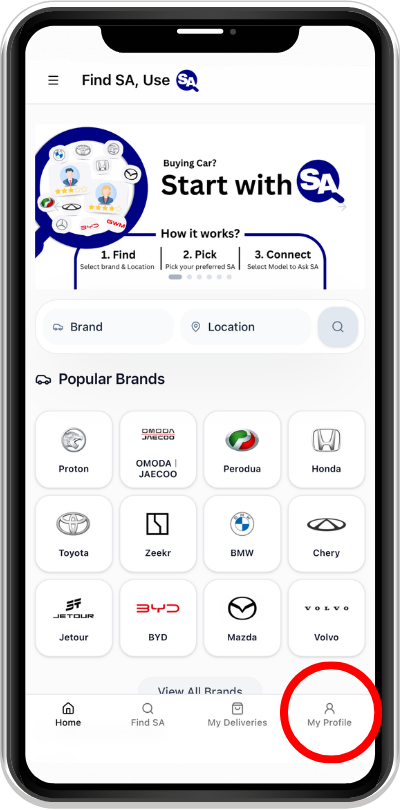
Step 1
Open My Profile
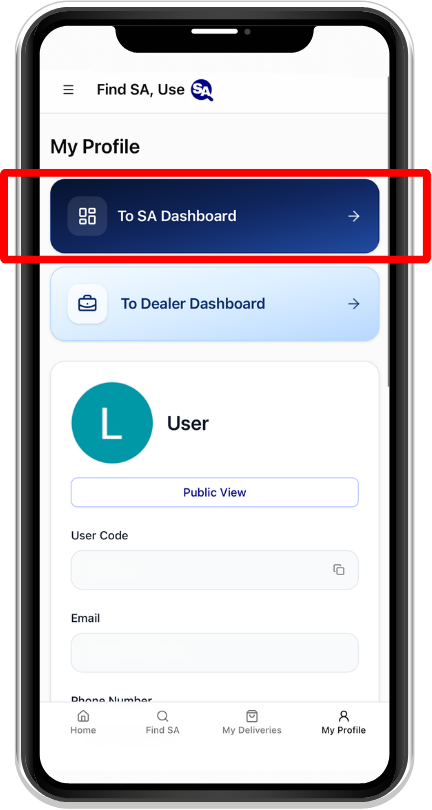
Step 2
Select To SA Dashboard
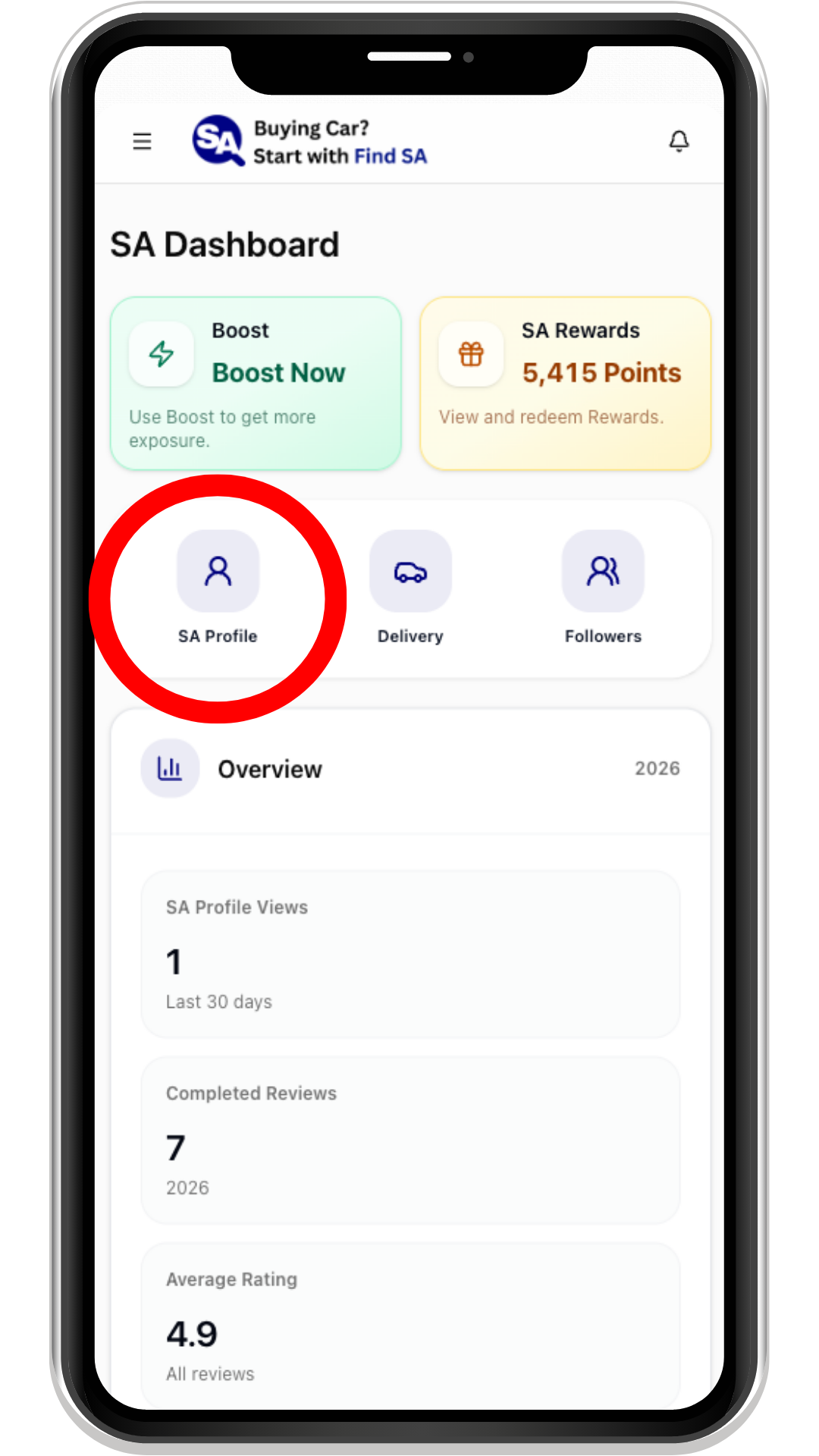
Step 3
Open SA Profile
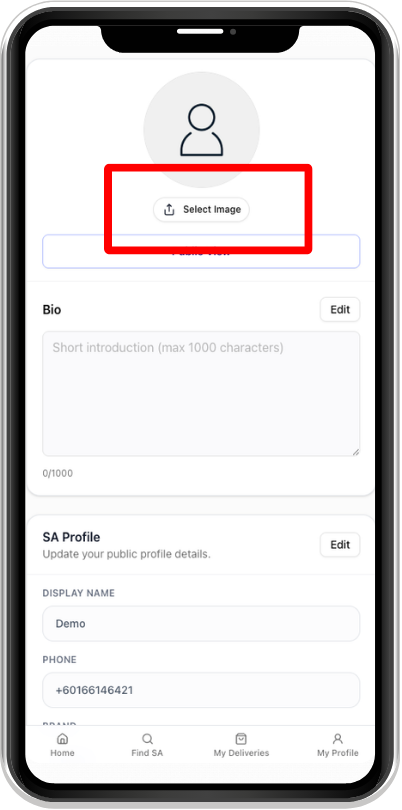
Step 4
Select Image and choose a JPG or PNG photo
Step 1
Open My Profile
Step 2
Select To SA Dashboard
Step 3
Open SA Profile
Step 4
Select Image and choose a JPG or PNG photo
Request updates to your name, phone number, brand, Dealer, location, or SA type.
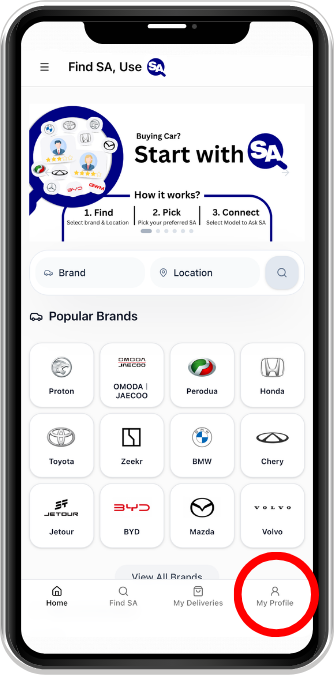
Step 1
Open My Profile
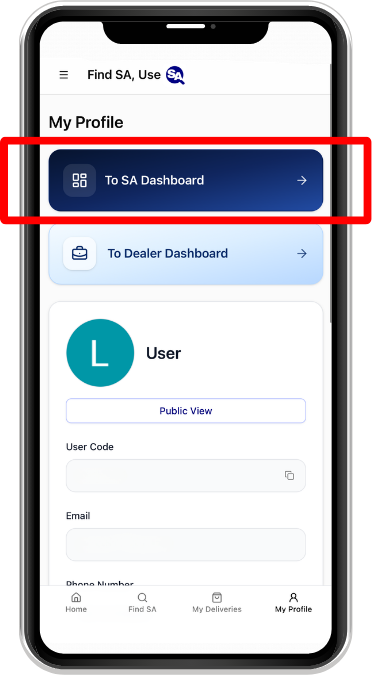
Step 2
Select To SA Dashboard
Step 3
Open SA Profile
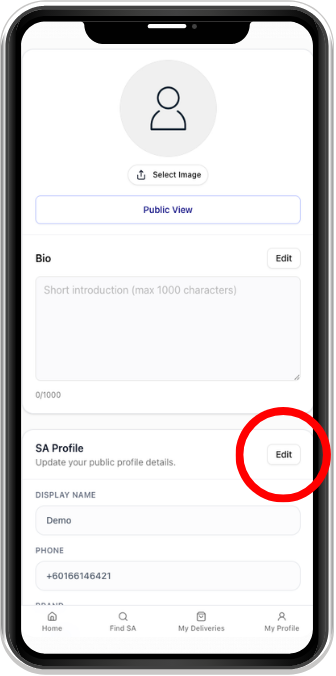
Step 4
Select Edit
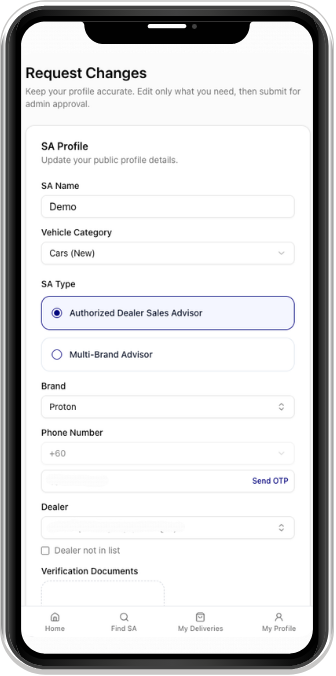
Step 5
Update the required details and submit your request
Step 1
Open My Profile
Step 2
Select To SA Dashboard
Step 3
Open SA Profile
Step 4
Select Edit
Step 5
Update the required details and submit your request
Requested changes are reviewed before they appear on your public profile.
Create a Delivery and send the Review Link to your customer via WhatsApp.
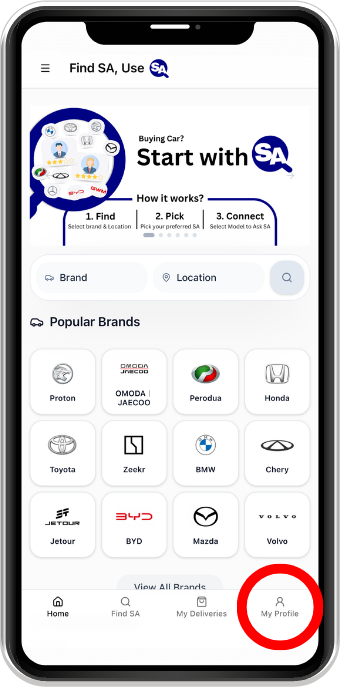
Step 1
Open My Profile
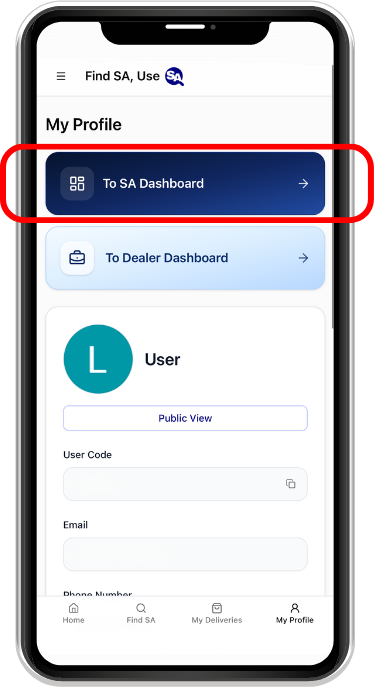
Step 2
Select To SA Dashboard
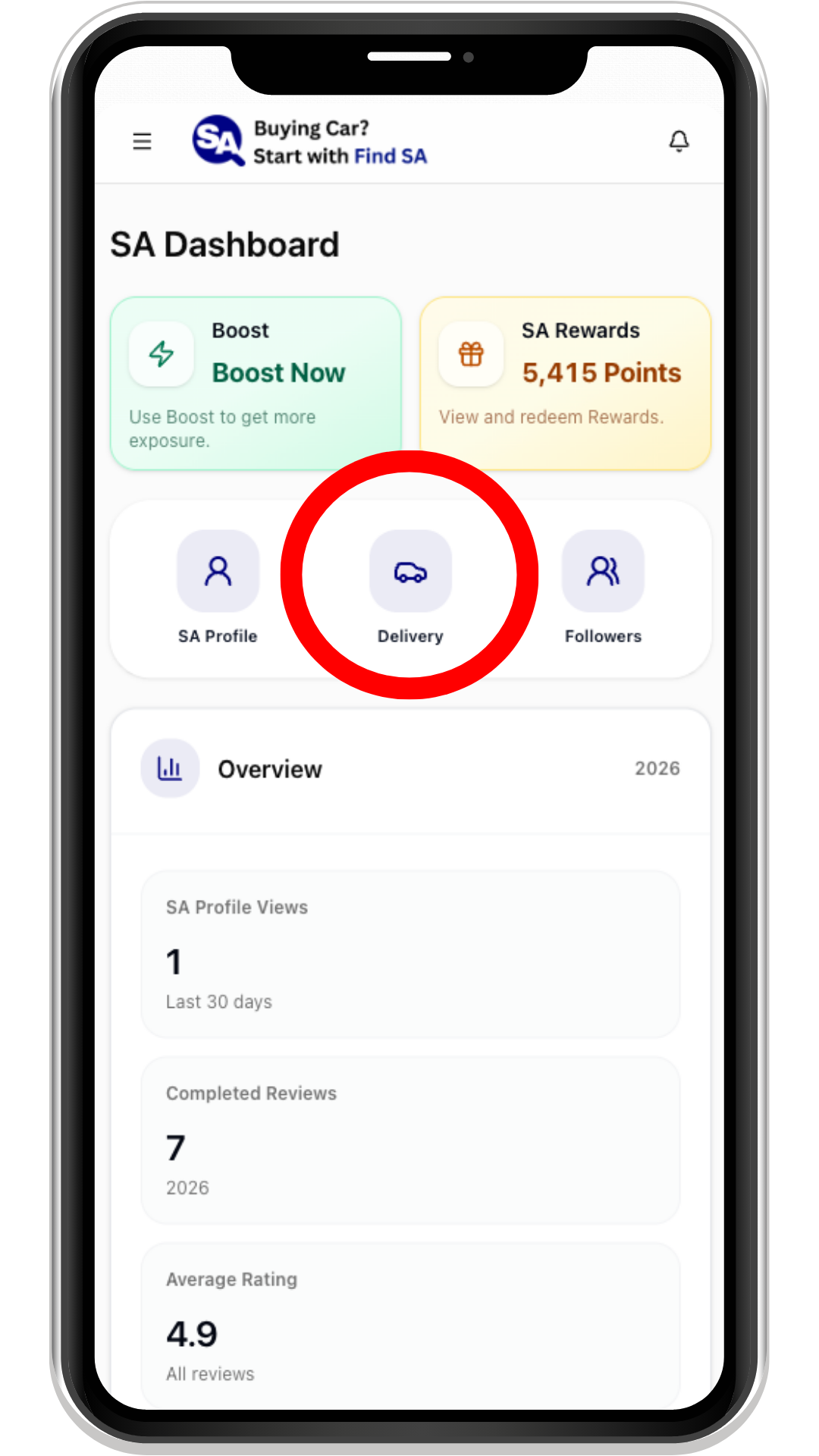
Step 3
Open Delivery
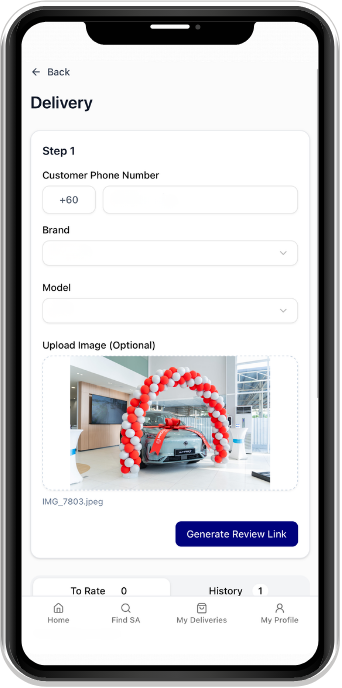
Step 4
Enter the customer and vehicle details, then select Generate Review Link
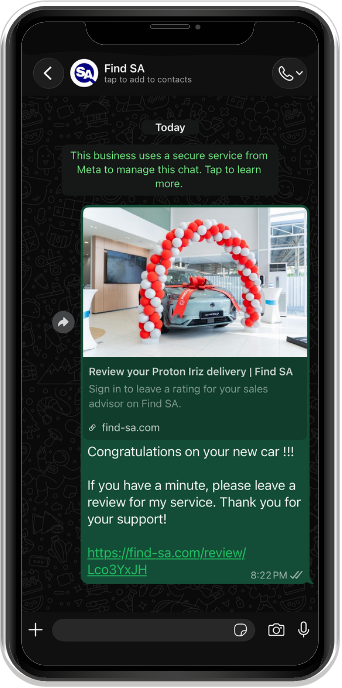
Step 5
Send the Review Link via WhatsApp
Step 1
Open My Profile
Step 2
Select To SA Dashboard
Step 3
Open Delivery
Step 4
Enter the customer and vehicle details, then select Generate Review Link
Step 5
Send the Review Link via WhatsApp
Approved Sales Advisors can earn and claim Points, then redeem eligible Rewards for themselves or send Customer Gifts. A customer claims a Gift in My Rewards after signing in with the matching verified phone number. The screens below are examples; Points, dates and availability depend on each Campaign and Reward.
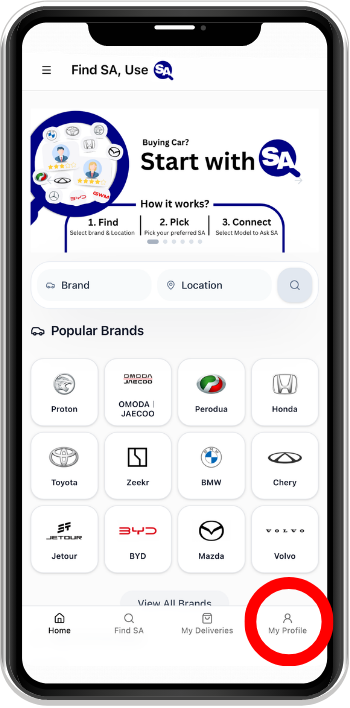
Step 1
Open My Profile
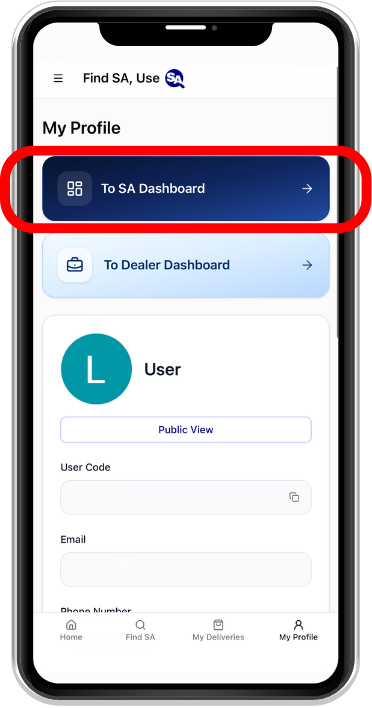
Step 2
Select To SA Dashboard
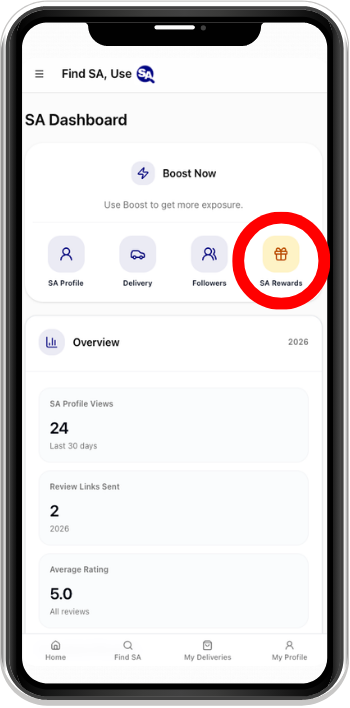
Step 3
Open SA Rewards from your Dashboard
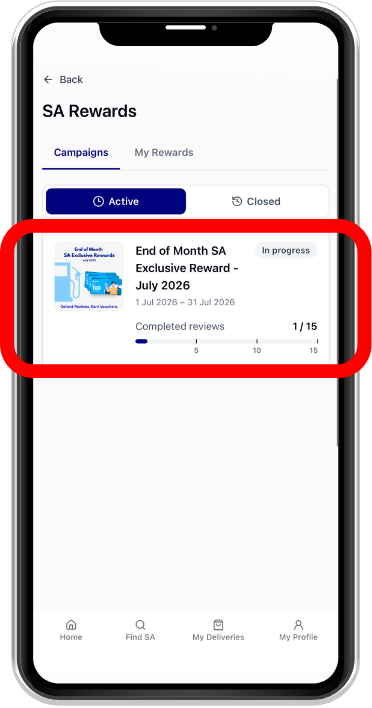
Step 4
Check your Points and browse available Rewards
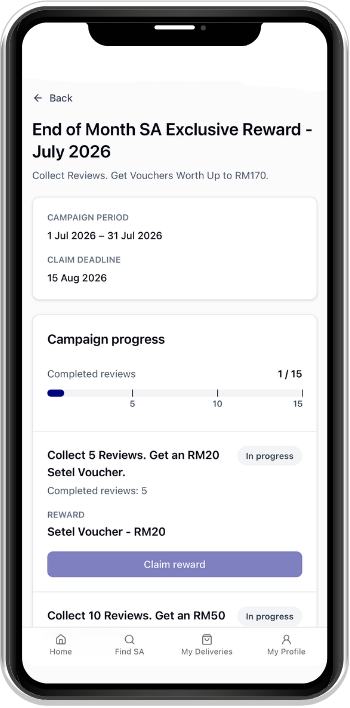
Step 5
Complete eligible activities and claim Points in Earn Points
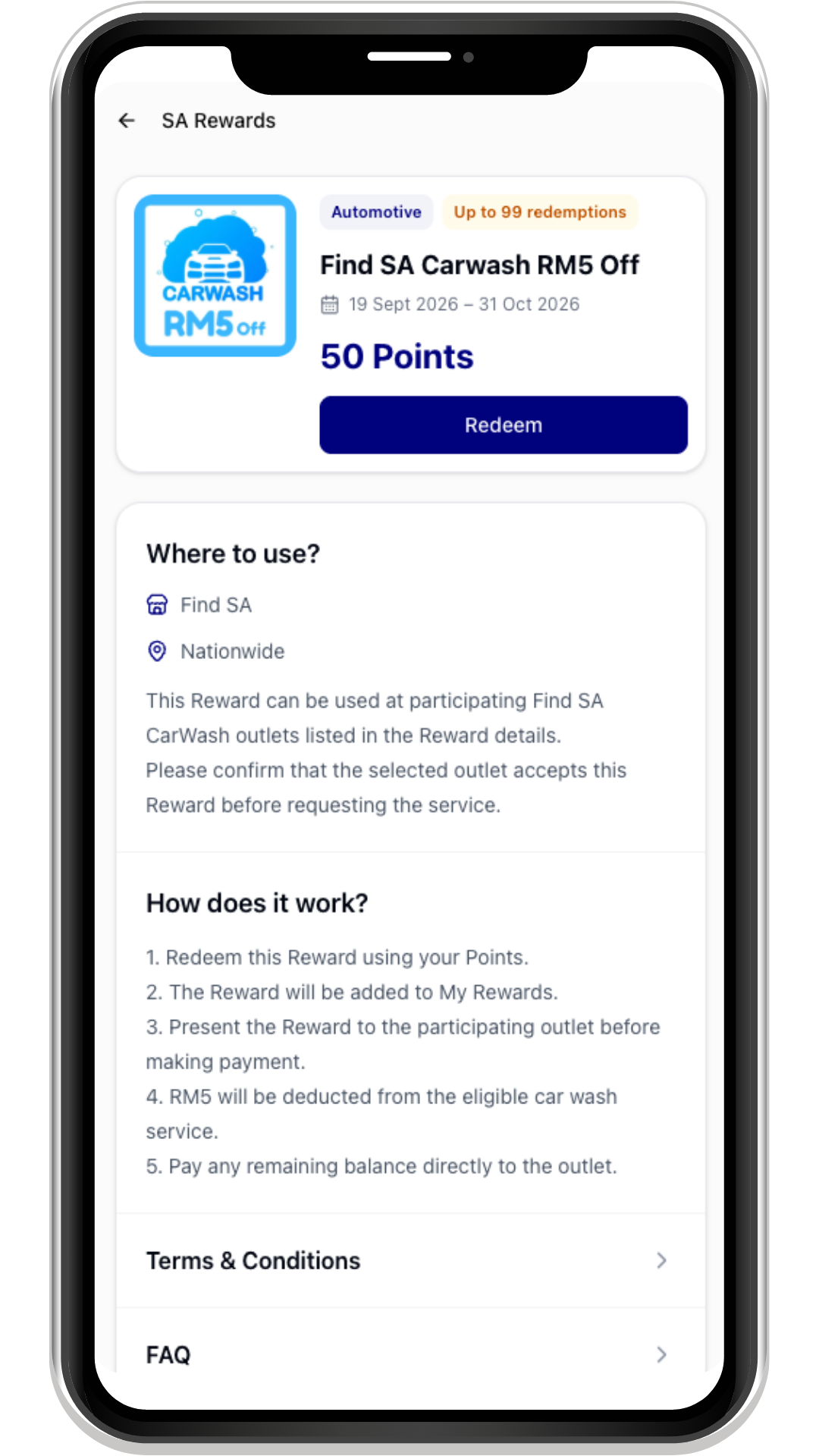
Step 6
Open a Reward to check its details and redeem it
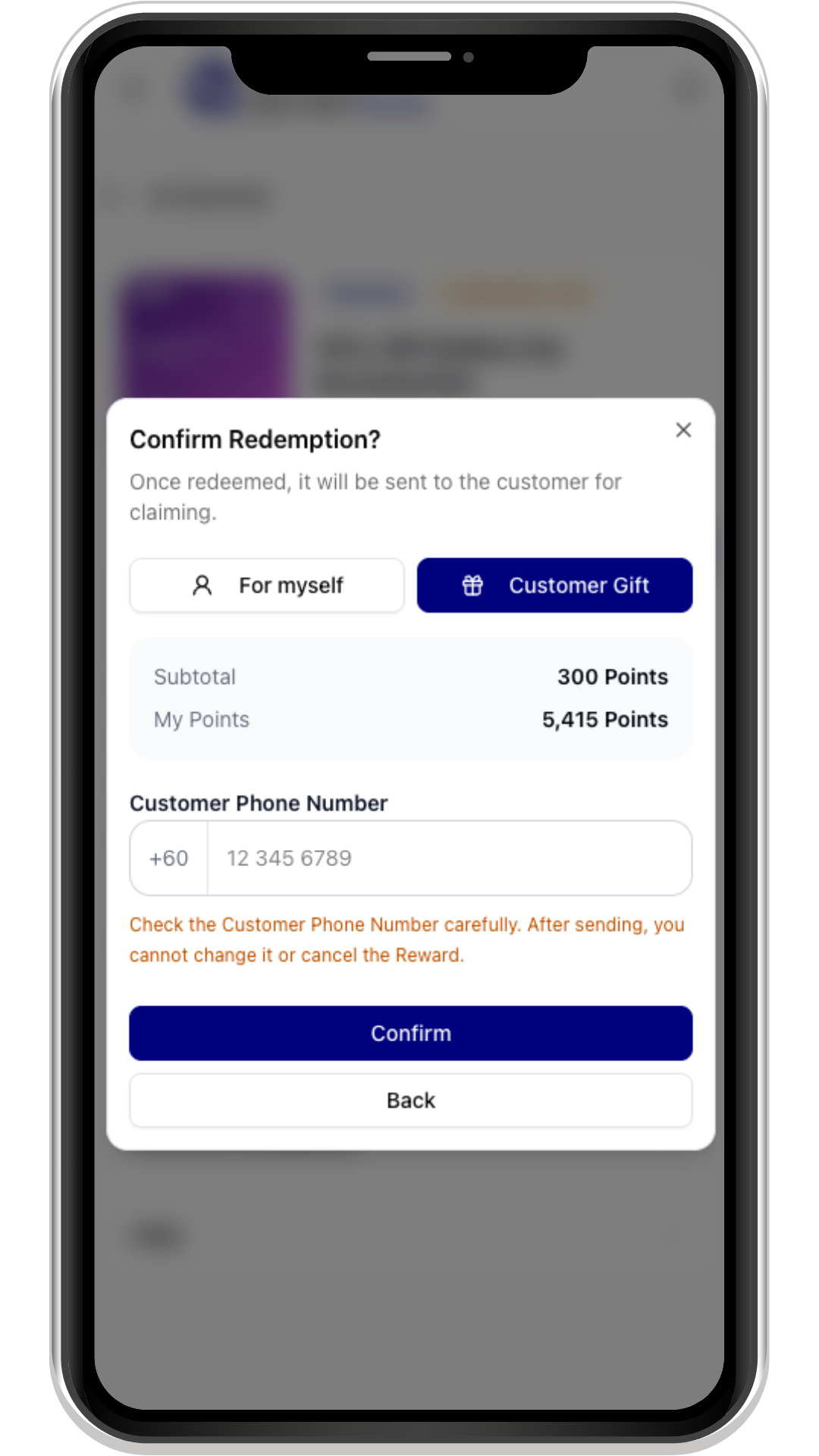
Step 7
Choose For myself or, where available, Customer Gift and confirm
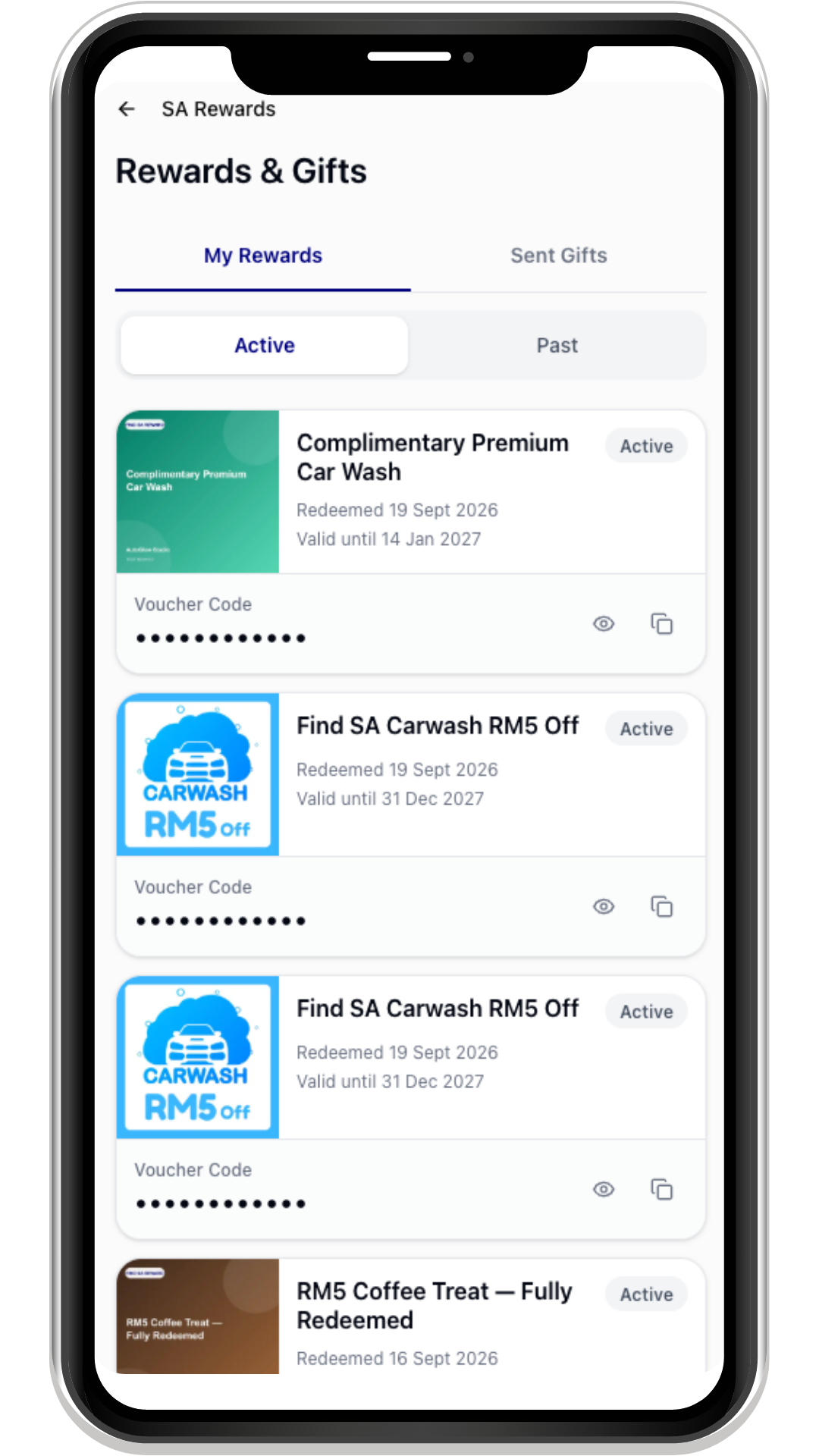
Step 8
Find your own redeemed Rewards in My Rewards; sent Gifts appear under Sent Gifts
Step 1
Open My Profile
Step 2
Select To SA Dashboard
Step 3
Open SA Rewards from your Dashboard
Step 4
Check your Points and browse available Rewards
Step 5
Complete eligible activities and claim Points in Earn Points
Step 6
Open a Reward to check its details and redeem it
Step 7
Choose For myself or, where available, Customer Gift and confirm
Step 8
Find your own redeemed Rewards in My Rewards; sent Gifts appear under Sent Gifts
Only SAs earn Points and browse Rewards. Users only see Gifts received in My Rewards.